D-Link DAP-1522
I originally bought a D-Link DAP-1522 as a wireless bridge upstairs, before I got the powerline adapters.
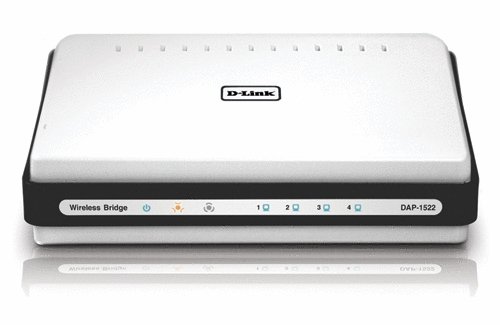
As a wireless bridge, it’s crap. I really wanted to like it, but for some reason it never kept a connection to the wireless network. I can’t tell you how many times I reset it to factory defaults or lost the ability to do any configuration on it at all.
As an access point, it’s great. I’ve had no trouble using it as a second wireless access point to expand coverage in the house.
Wireless-N
In order to get the DAP-1522 to do wireless N speeds (specifically when running it as an access point), you have to…
Use the AES cipher with WPA or WPA2 (WPA2 is recommended).
Set the channel width to 20/40 Auto.
If there are still troubles getting N speeds, set it to 802.11N only or G/N mixed.
Connecting Manually to the Admin Page
If you have trouble connecting to the admin page at https://dlinkap then you may need to connect manually.
Connect your computer to the access point with an Ethernet cable.
Go into the adapter settings for the network adapter you’ve connected to the access point.
- Update the TCP/IPv4 settings on the adapter so it’s not DHCP anymore. Use these settings:
IP = 192.168.0.99
Subnet Mask = 255.255.255.0
Gateway = 192.168.0.50
Now open up a browser and go to 192.168.0.50 as you normally would to get to the configuration page. It should come up.
Resetting the Bridge
Sometimes for whatever reason the DAP-1522 loses connection to the network and just hangs. Super annoying. This is why I eventually stopped using it as a bridge.
Here’s how to totally reset it and get it working in bridge mode again.
Switch DAP-1522 to Auto mode. (In Bridge mode you can’t access the admin console.)
Reset the DAP-1522 by pressing the reset button.
Follow the instructions above to connect manually to the admin page.
Log in using “admin” and no password.
Under Maintenance/System, reset the DAP-1522 to system defaults.
Under Maintenance/Admin, update the “admin” password.
Under Setup/Network Settings configure the access point for…
LAN Connection Type = Static IP
Access Point IP Address = 192.168.1.200 (Set up a static IP address in your router. I used .200 for mine; you can use a different IP address for yours.)
Subnet Mask = 255.255.255.0
Default Gateway = 192.168.1.1
Device Name = dlinkap
After saving the settings, switch your network settings on the computer to…
IP = 192.168.1.99
Subnet Mask = 255.255.255.0
Gateway = 192.168.1.200 (Use the static IP address of the access point from above.)
After switching settings, try to reconnect to https://192.168.1.200 (the static IP) and ensure you can still get to the dlinkap admin console.
At this point, the DAP-1522 should be flashing the orange light on the front indicating it’s in bridge mode.
Run through the wireless setup wizard on the DAP-1522 to connect to the wireless network. For some reason, you can’t just enter the data manually.
Switch the computer network settings to DHCP and see if you can get to the internet. You should be able to.
Connect to the DAP-1522 at https://192.168.1.200 (the static IP) again and log in. The admin password may have been reset to empty, so you may have to fix that again.